
Clever Login Portal for Students, Teachers and Families
Access your school’s digital learning resources from one secure dashboard. Learn how to use Clever Login, Google sign-in and Clever Badges.
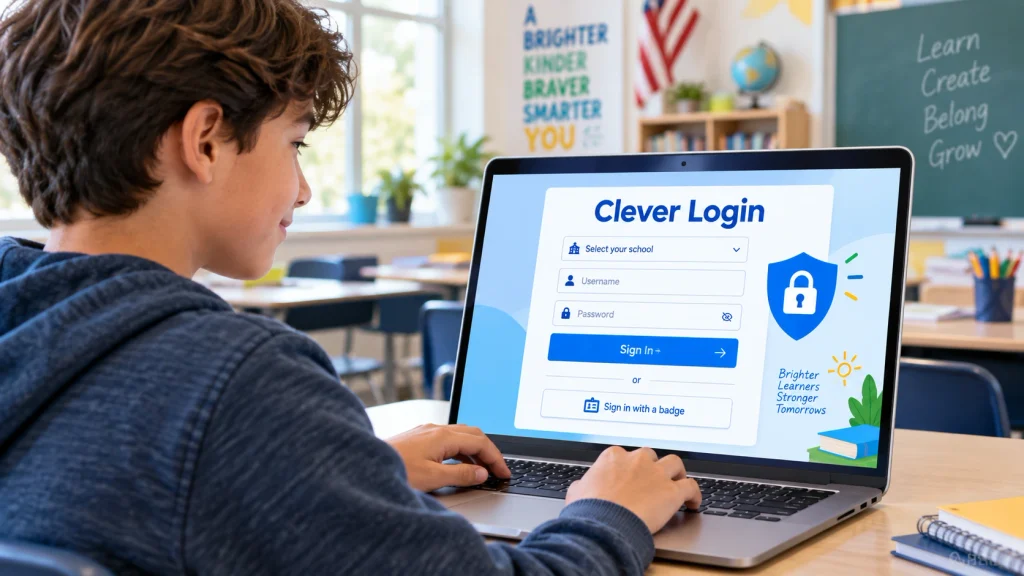
What Is the Clever Login Portal?
The Clever Login Portal is a centralized digital-learning gateway used by participating schools. It allows students, teachers and school staff to access approved educational applications and resources through one personalized dashboard.
Instead of remembering a separate username and password for every learning platform, an authorized user signs in using the authentication method selected by their school district. Connected applications can then be opened from the Clever Portal.
Clever can reduce the time spent searching for class resources or entering multiple passwords. However, the applications visible in an account depend on the school’s subscriptions, class rosters, user role and district settings.
What Is Clever and Why Does It Matter?
Clever is an education-focused identity and access platform founded in 2012. It helps schools connect student and teacher accounts with digital-learning resources while providing centralized authentication and roster-management tools.
Clever reports that its platform is used by more than 111,000 K–12 schools and millions of students and teachers. These figures may change, so readers should check the official Clever website for the latest information.
One Secure Identity
Users can reach compatible educational resources through a district-approved identity.
Organized Resources
Assigned applications and learning links appear in one personalized portal.
Faster Access
Students can spend less class time repeatedly entering credentials.
Clever Login for Students
Clever student login gives authorized students access to the applications and resources assigned by their school. After signing in, a student may see learning programs, digital textbooks, classroom platforms, teacher-created pages and class links.
The Clever dashboard is personalized. Two students at the same school may see different resources because they belong to different grades, classes or learning groups.
Benefits for Students
- One organized dashboard for assigned resources
- Fewer separate passwords for compatible applications
- Access from supported school and personal devices
- Faster entry into online classroom activities
- Clever Badge access where enabled by the district
- Personalized applications based on enrollment and role
Clever Login Options
The login method displayed on the Clever Portal depends on the school district’s configuration. Users should select only the method recommended by their school.
| Login method | How it works | Important detail |
|---|---|---|
| School credentials | The student enters a username and password provided by the school. | Personal email credentials may not work. |
| Google sign-in | The user signs in with an authorized school Google Workspace account. | The district must enable Google authentication. |
| Microsoft sign-in | The user authenticates with an approved school Microsoft account. | Often used by Microsoft 365 school districts. |
| Clever Badge | A school-issued QR-style Badge is scanned using a compatible camera. | Commonly used to simplify access for younger learners. |
| District SSO | The user is redirected to the district’s identity provider. | The page and steps can differ by district. |
Step-by-Step Clever Student Login Guide
Visit the official Clever sign-in page or use the district URL provided by your teacher.
Search for the school or district and check the location before selecting it.
Select school credentials, Google, Microsoft, district SSO or Clever Badge according to school instructions.
Enter your school credentials or scan your assigned Badge.
After authentication, the personalized Clever Portal will display assigned resources.
Click the required app tile, link or Teacher Page to begin the activity.
Clever Login for Teachers
Clever teacher login gives authorized educators access to their school’s connected applications and classroom resources. Available tools may include Teacher Pages, class-roster information, application links, analytics and selected troubleshooting features.
Teachers may organize approved links, applications and PDFs for particular classes. This can help students find the correct materials without searching through multiple websites.
Potential Teacher Features
- Access district-approved educational applications
- View synchronized classes and student rosters
- Create or manage Teacher Pages where enabled
- Organize links, applications and classroom resources
- Review available technology-usage information
- Help students troubleshoot certain login problems
Clever does not replace every learning-management or assessment platform. Assignments, quizzes, scores and progress details may be managed by the connected application.
How Teachers Get a Clever Account
Teachers generally receive Clever access through their participating school or district. A teacher should not assume that creating an unrelated personal account will connect them to official school classes or student information.
The typical process includes:
- The school or district configures its Clever environment.
- The teacher’s authorized staff identity is synchronized.
- Classes and rosters are connected from school records.
- Applications are assigned according to district permissions.
- The teacher receives official login instructions.
Clever Badge Login for Students
Clever Badges provide a camera-based login method that can be especially useful for younger students who may find complex passwords difficult to enter. The Badge is issued and managed by the participating school.
How to Use a Clever Badge
Clever Access for Families
Family and guardian access depends on the school district and the Clever features it has enabled. Where supported, families may receive invitations or instructions from their child’s school.
Parents should not attempt to use their child’s school credentials without guidance. They should use only official invitations, links and instructions sent by the participating school.
Progress information may also come from individual educational applications rather than directly from Clever. Contact the teacher if expected family resources are unavailable.
Common Clever Login Problems and Fixes
| Login problem | What to try |
|---|---|
| School cannot be found | Check the spelling or use the direct district link supplied by a teacher. |
| Incorrect password | Check Caps Lock and verify that you are using your school credentials. |
| Wrong Google account | Sign out of personal Google accounts and select the authorized school account. |
| Badge will not scan | Enable camera access, improve lighting, clean the lens and keep the Badge flat. |
| Application is missing | Ask the teacher to verify enrollment, roster synchronization and app assignment. |
| Wrong class appears | Ask the school to review the student’s current enrollment and roster data. |
| Page loads slowly | Check the internet connection, close unnecessary tabs and restart the browser. |
| Clever appears unavailable | Check the official system-status page and district announcements. |
Browsers and Devices for Clever Login
Clever can be accessed from many modern computers, Chromebooks, tablets and smartphones. However, device compatibility may depend on district policies and the requirements of each connected learning application.
For a smoother login experience:
- Use an updated version of Chrome, Edge, Firefox or Safari.
- Enable cookies and JavaScript when required.
- Allow camera permission when scanning a Clever Badge.
- Use the school-managed browser profile if instructed.
- Check whether a connected service requires its own mobile app.
- Restart the browser if an application fails to open.
Clever Login Security and Privacy
Clever provides education-focused identity, authentication and access-management tools. Schools control local account settings, application assignments and the login methods available to their users.
Safe login practices remain important even when using single sign-on. Students, teachers and families should protect school credentials and follow district technology policies.
Important Security Practices
- Use only official Clever or school district login pages.
- Never share a password or Clever Badge publicly.
- Sign out after using a shared computer.
- Do not approve unexpected authentication requests.
- Report suspicious activity to the school technology team.
- Review the district’s student-data and acceptable-use policies.
Tips for a Smooth Clever Login
- Bookmark the correct district login page.
- Confirm the school name and location before signing in.
- Keep school credentials private.
- Use the school Google account when Google login is enabled.
- Check camera permissions before scanning a Badge.
- Keep browsers and devices updated.
- Teachers should test important application links before class.
- Contact the school instead of repeatedly guessing a password.
If the login works but an application or class is missing, the issue may involve enrollment, permissions or roster synchronization rather than the student’s password.
Final Thoughts
The Clever Login Portal gives participating school communities one organized gateway to digital-learning resources. Students can reach assigned applications, teachers can organize classroom resources and administrators can manage identities and access.
Because every district configures Clever differently, always follow the instructions supplied by your school. For password resets, missing applications, incorrect classes or account problems, contact your teacher or district technology team.
🔐 Access Official Clever LoginFrequently Asked Questions
How do I log in to Clever?
Open the official Clever Login page or your district’s approved portal, select your school and use the login method provided by the district.
Can I use Clever without a school account?
Students generally need an account provided or managed by a participating school or district.
Can students log in with Google?
Yes, when their district enables Google authentication. Students should use their authorized school Google account.
What is a Clever Badge?
A Clever Badge is a school-issued QR-style login method that can be scanned using a compatible device camera.
What should I do if I forget my password?
Follow your district’s password-reset instructions or contact your teacher, school office or technology team.
Why is an application missing from Clever?
Application access depends on licensing, enrollment, class rosters, user roles and district assignments.
Can teachers create their own school account?
Teachers usually receive access through their school or district. Contact the district administrator if the account or classes are missing.
Does Clever work on mobile devices?
Clever can work on supported mobile browsers and devices, although individual applications may have separate requirements.
Is CleverApp.us the official Clever website?
No. CleverApp.us is an independent informational website. The official platform is available at Clever.com.